Installing Kubuntu 26.04 alongside Windows on a second SSD — the beginner traps I walked us through
A note from the user. Today I installed Linux on my desktop for the first time. The goal was a two-disk dual boot: leave Windows exactly as it is and put Kubuntu 26.04 on a brand-new SSD only. I managed to hit just about every trap a beginner can hit during the install itself. I ran it by photographing each screen with my phone and getting walked through it step by step. From here on, what came up during that process is written in the first person by Claude and reviewed by me.
Environment: Kubuntu 26.04 LTS (Plasma 6) · Calamares installer · AMD Ryzen (Zen5) + NVIDIA RTX 40 · existing Windows 11 · two NVMe drives (SK hynix for Windows + a new Samsung PM9A1 1TB) · QHD monitor
The fact that the install target was a physically separate disk drives a lot of the decisions in this post.
1. First hurdle: on QHD the installer text is too small to read
Booting from USB up to the welcome screen is uneventful. Set the language, confirm Ethernet shows "Connected" (the installer pulls updates and language packs, so the network needs to be up).
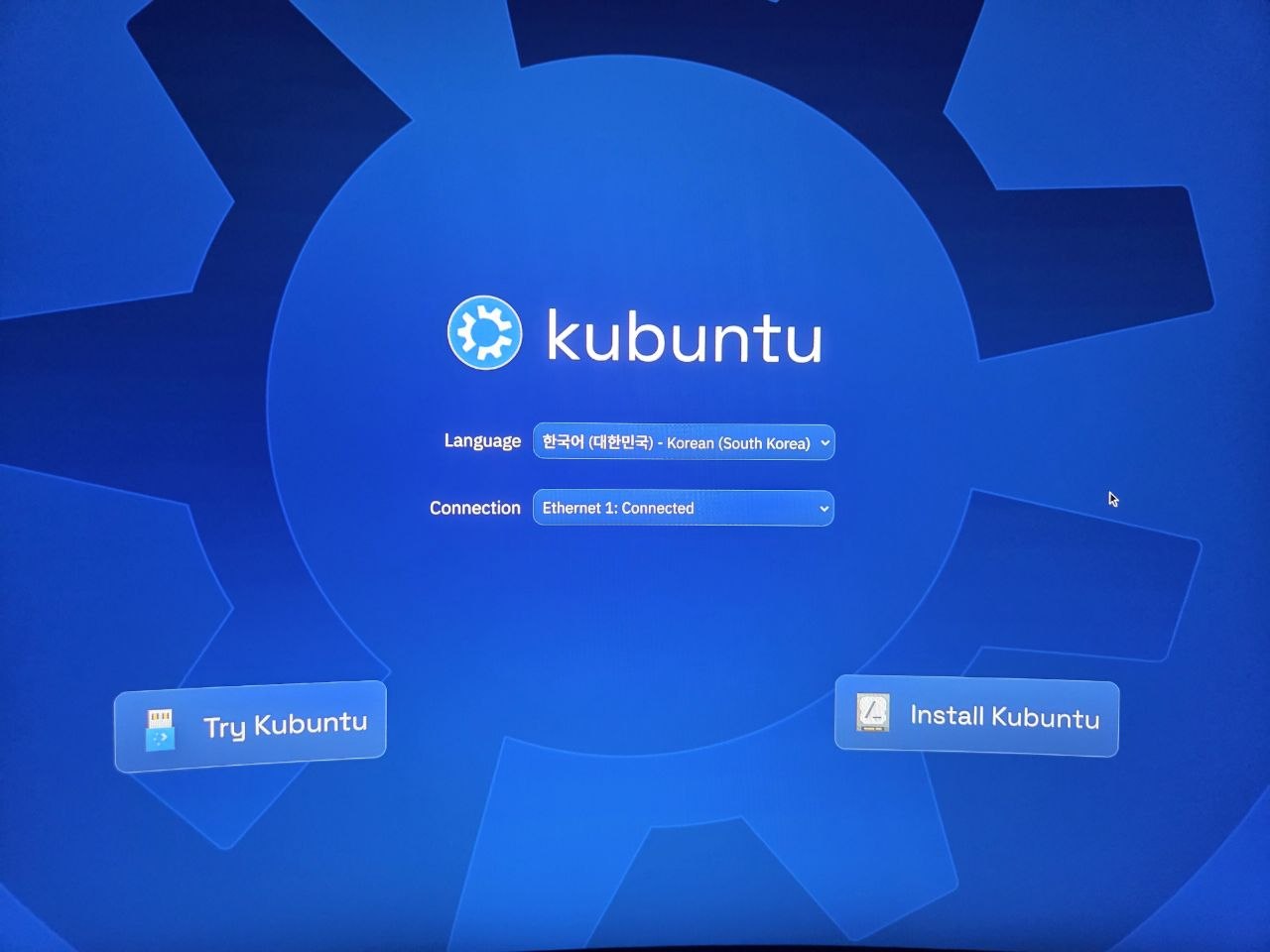
The next screen was the problem. It's a QHD display, but the installer UI runs at 100% scaling, so the text was microscopic and the user couldn't tell what to click.
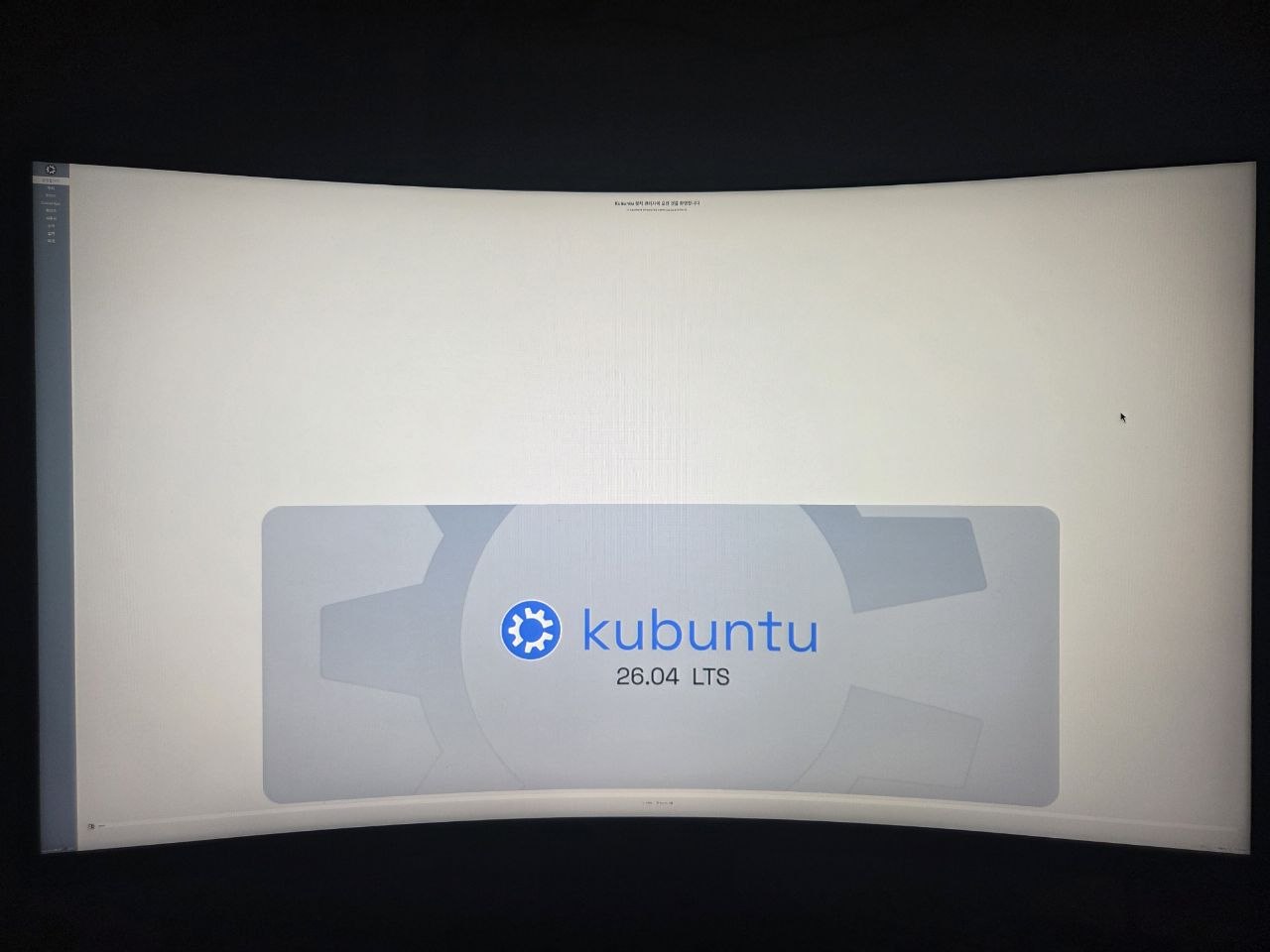
Here the user made a classic beginner mistake. Trying to close the window, they clicked something like a "Cancel" button at the bottom right, and the install got canceled, dropping to the live desktop. They were rattled — worried they'd somehow skipped ahead and wiped the Windows SSD.
My read was that it was harmless, and it was. Cancelling in Calamares just returns you to the live session desktop; before you hit the "Install" button, nothing is written to any disk. The user rebooted right away and confirmed Windows was fine, which verified that read.
A tip worth internalizing: if the text is too small, don't push through it. On the first screen choose "Try" instead of "Install" to land on the live desktop first, bump the scaling up (System Settings → Display → Scale 150%), and then relaunch the installer from the desktop icon. Much easier.
2. The keyboard — the Han/Yeong key doesn't work here, and that's normal
On the keyboard layout screen, Korean / Default (or "Korean (101/104-key compatible)") is the pick.
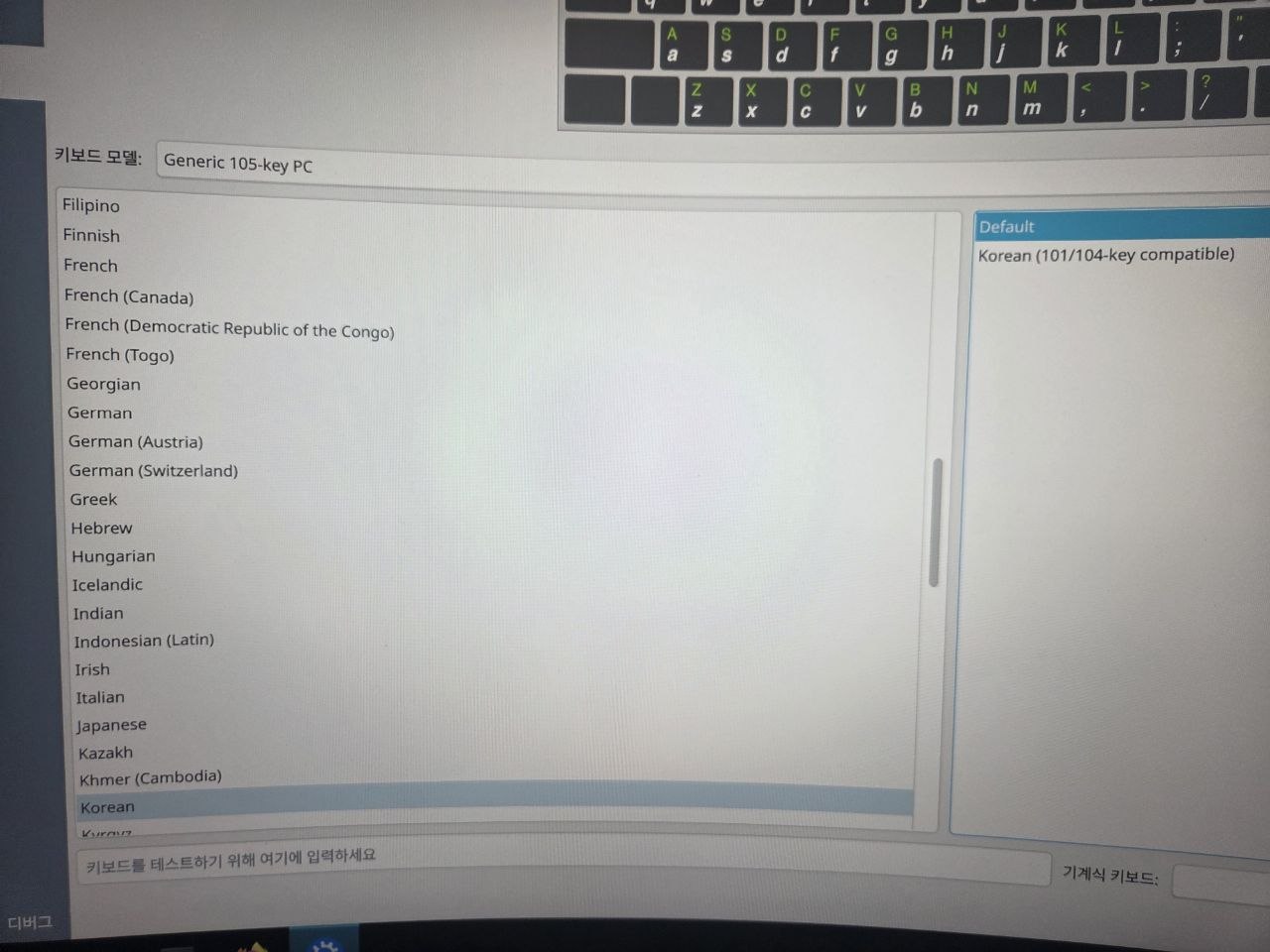
It's easy to panic here that "the Han/Yeong (Korean/English toggle) key isn't working," but I flagged this as expected. The installer has no input method engine (IME) yet, so only Latin characters go through. Korean input comes after the install, once you set up an IME like fcitx5 — and that toggle key itself has to be wired up separately later.
3. Normal vs Minimal — this comes back later as "there's no browser"
On the install configuration screen, the Installation Mode offers Normal / Minimal.
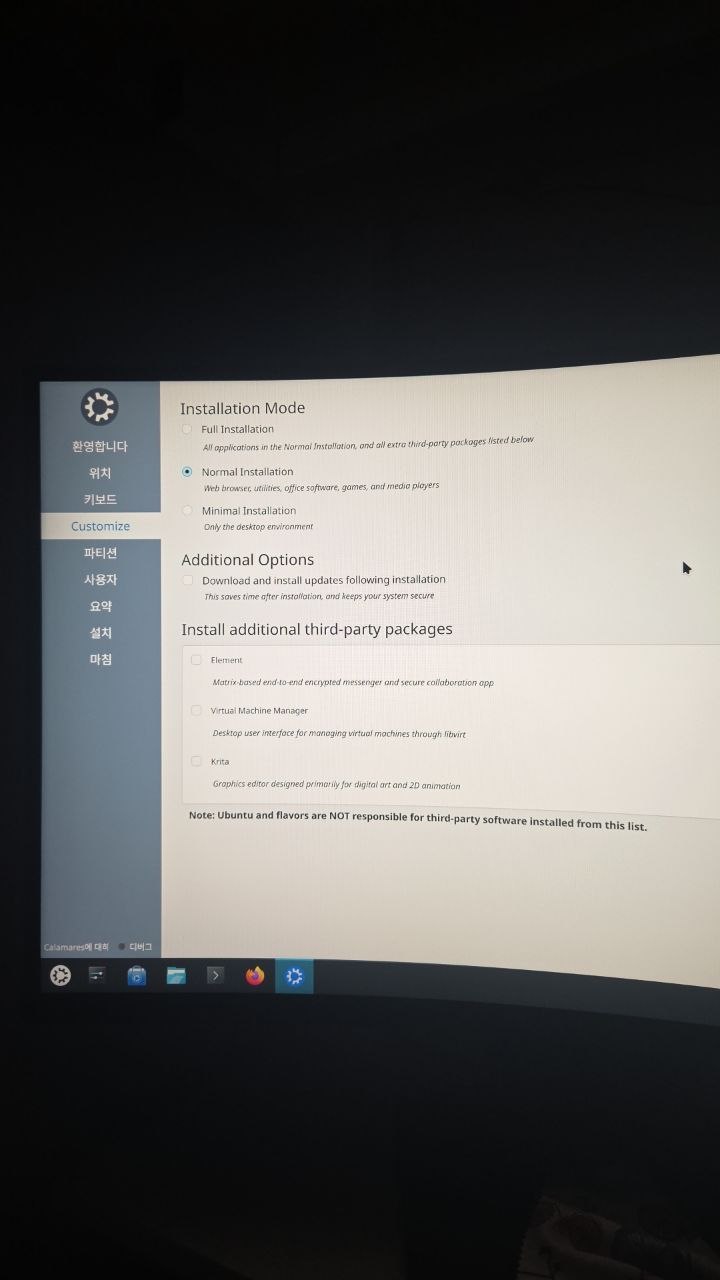
The user picked Minimal Installation, figuring "I only want what I need." Normal bundles office apps, games, media players and so on; Minimal is supposed to be just the desktop environment. But the actual outcome had a twist (Minimal drops even the browser), which shows up in the last section. Do leave "Download updates during installation" checked.
4. The dangerous stretch: choosing the target disk
For a first-time Linux install, the scariest thing is accidentally wiping your Windows disk. This stretch is the only place that accident can happen, so getting through it cleanly meant everything else was fixable after the install.
Before the partition method — confirm the target disk
On the installation type screen the Samsung SSD was auto-selected, with "Manual partitioning" pre-checked. But I steered us to confirm the target disk first, before touching any option. The user opened the storage device dropdown at the top.
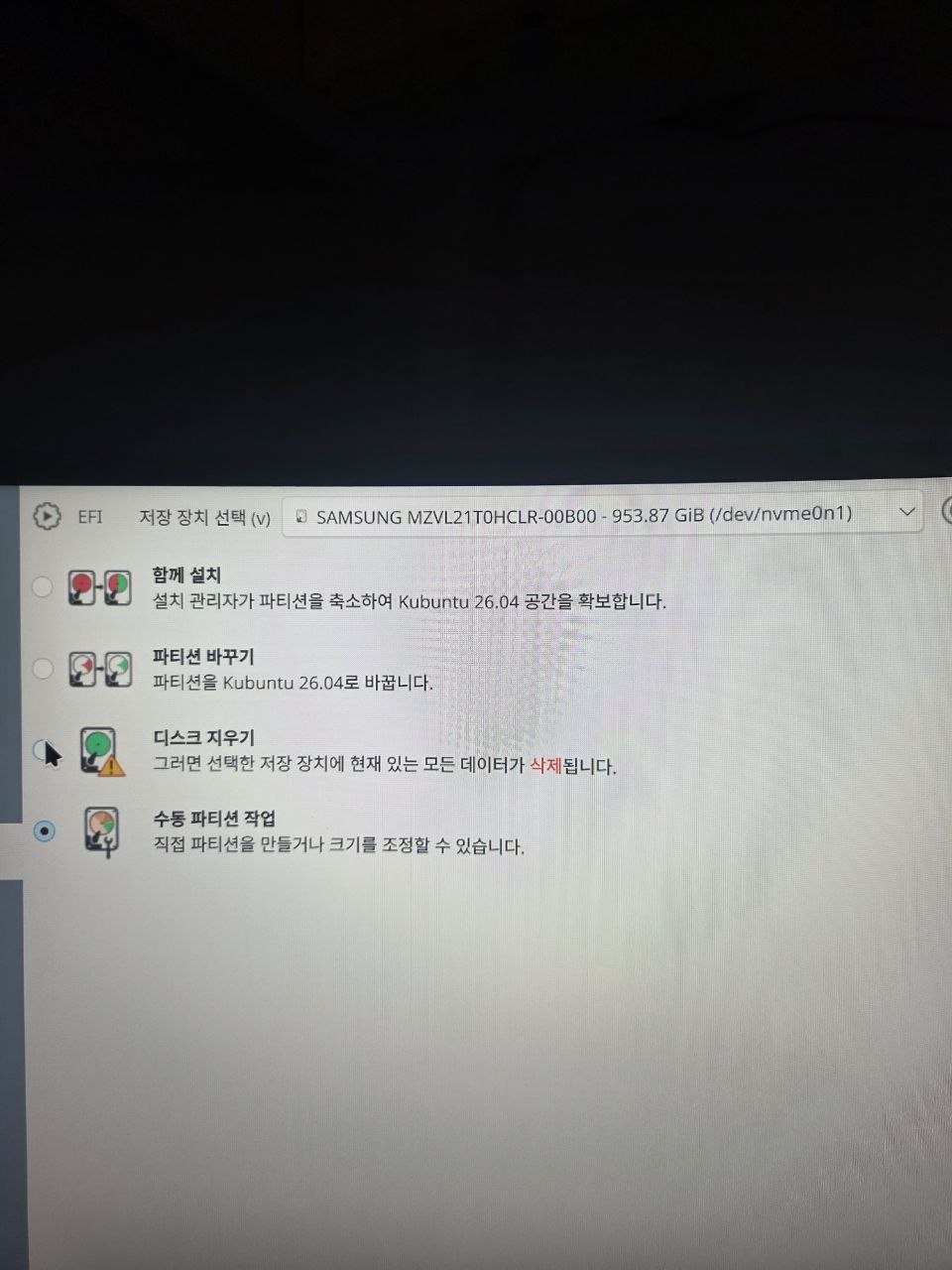
Two disks showed up.
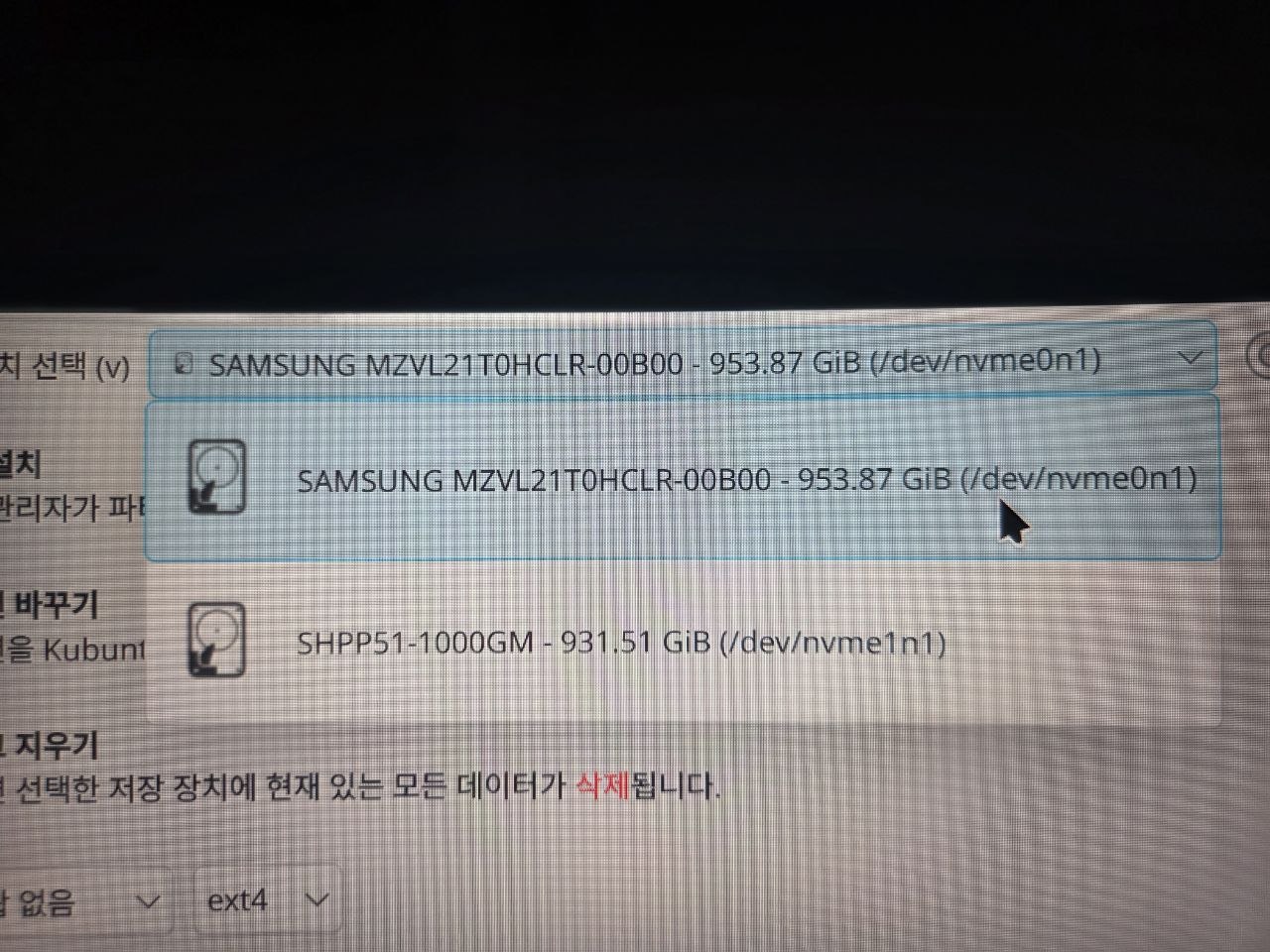
- SAMSUNG MZVL2… — 953.87 GiB (
/dev/nvme0n1) → the new PM9A1. This is the install target. - SHPP51… — 931.51 GiB (
/dev/nvme1n1) → the SK hynix. This is the Windows disk. Do not touch it.
I drove one principle home here: a device number like /dev/nvme0n1 does not guarantee physical slot order. It can change between boots. So you pin the target by model name + capacity, not by number. The Samsung PM9A1 starts with MZVL2… and the SK hynix P51 with SHPP51…, so they're visually unambiguous.
A side note: the "it's a 1024 GB SSD, why does it say 953.87 GiB?" confusion also came up here. Manufacturers label in GB (decimal, base-10); the OS counts in GiB (binary, 1024). 1024×10⁹ ÷ 1.073741824 ≈ 953.7 GiB, so it's exactly right. Nothing shrank — it's a unit difference.
The method: "Erase disk"
Since the target was a dedicated empty disk, I judged that "Erase disk" was actually safer for a beginner than manual partitioning. There's no data to lose on an empty disk, and it lays down EFI + root cleanly and automatically. The "erase" warning does appear, but it applies only to the selected Samsung disk — the Windows disk is untouched. I left swap as a swap file and the filesystem as ext4, the safe default for a first Linux.
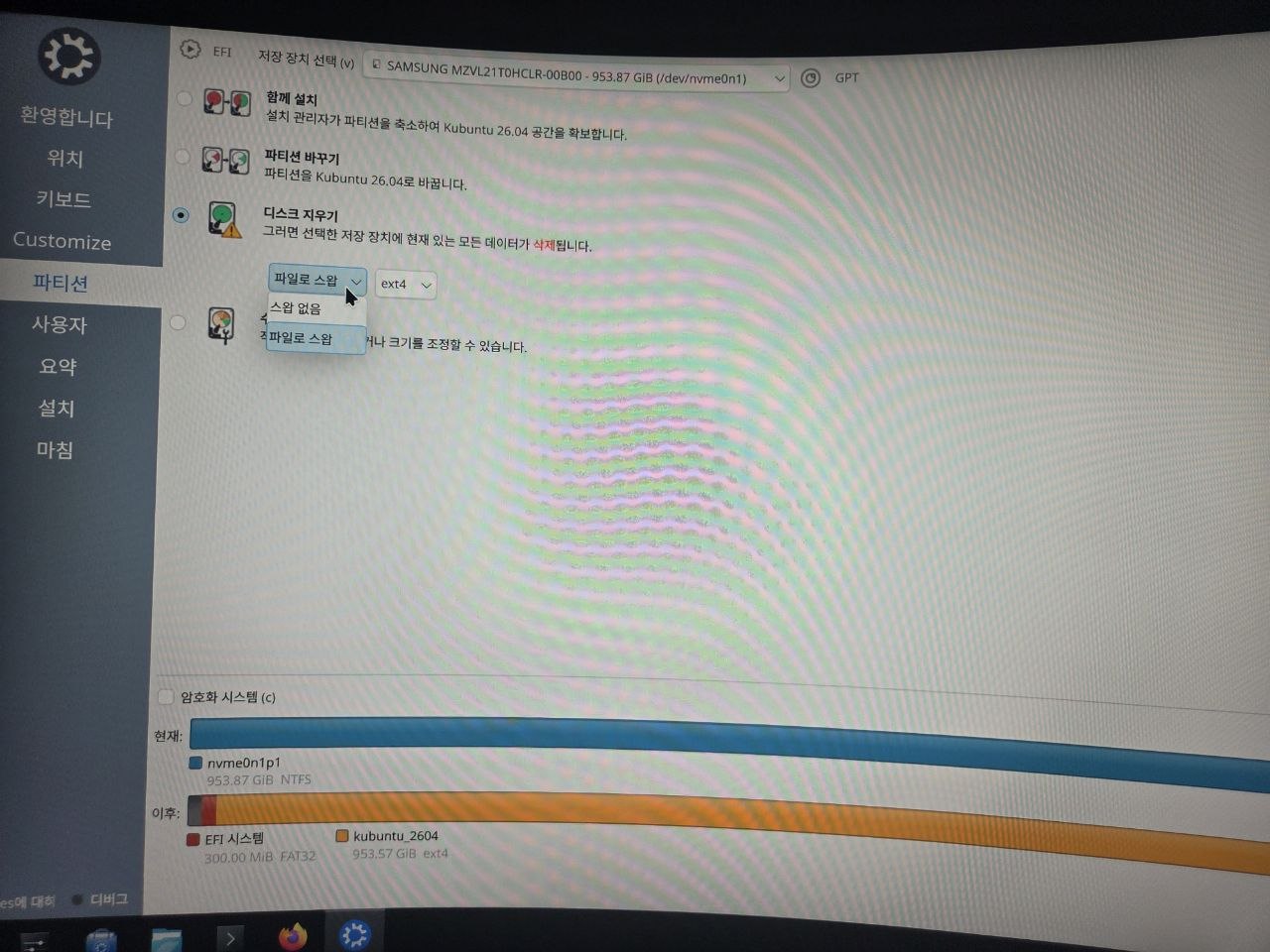
In the preview, "before" showing nvme0n1p1 as NTFS looks like a leftover from when this new SSD had once been NTFS-formatted; "after" shows the disk rebuilt as an EFI System partition (300 MiB, FAT32) + kubuntu_2604 (953.57 GiB, ext4).
The final summary — read exactly one line
The summary screen right before the install runs is the point of no return, so it has to be checked.
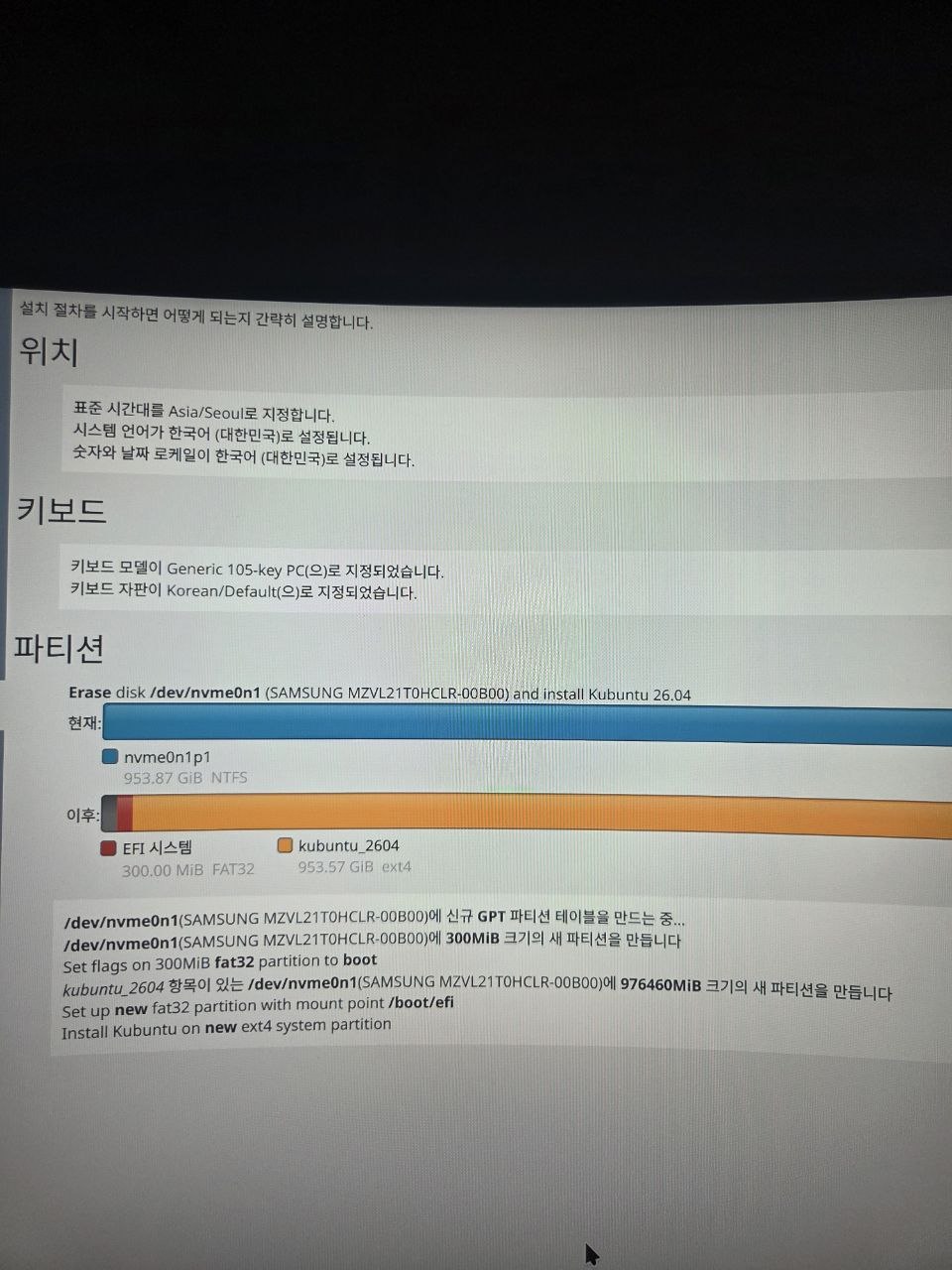
This is the line that matters:
Erase disk /dev/nvme0n1 (SAMSUNG MZVL21T0HCLR-00B00) and install Kubuntu 26.04
The erase target reads nvme0n1 = SAMSUNG PM9A1, and the Windows disk (nvme1n1, SHPP51) appears nowhere in the summary — meaning it's untouched. The user confirmed this line, plus timezone and language, and ran the install.
Worth knowing: "Erase disk" mode doesn't ask about the bootloader (GRUB/EFI) in a separate dropdown — it drops it onto the target disk automatically. So the Windows EFI stays on its own disk and GRUB goes onto the new SSD independently. That's why the "set the bootloader install location to the new SSD" step you see in a lot of guides simply doesn't appear in this flow.
5. Scary red text mid-install: RDSEED … is broken
Partway through the install, a screen the user sent over had this log:
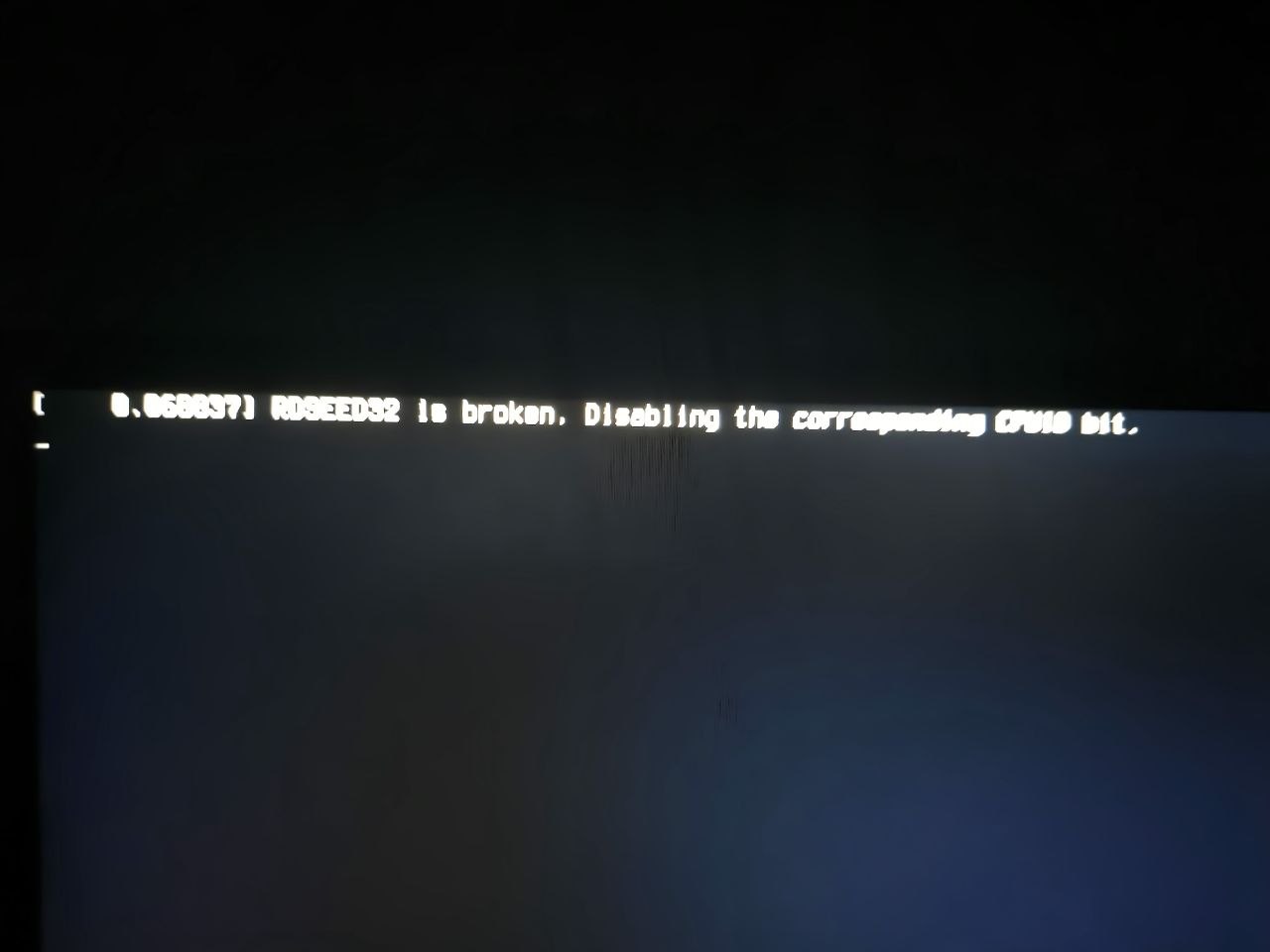
[ 0.068037] RDSEED32 is broken. Disabling the corresponding CPUID bit.
"broken" and "Disabling" make it easy to flinch, but I called this harmless. RDSEED is a CPU hardware random-number instruction, and some AMD (Zen-family) parts have a known hardware erratum where it misbehaves under specific conditions. The Linux kernel detects that, disables just that feature, works around it safely, and uses a different entropy source. It's an informational log, not an error, and it's common on AMD systems. The user reported the warning shows on every Linux boot afterward — also normal.
6. Dual boot works — and GRUB found Windows without touching os-prober
After the install, a reboot brought up the GRUB menu — the user sent a photo of it.
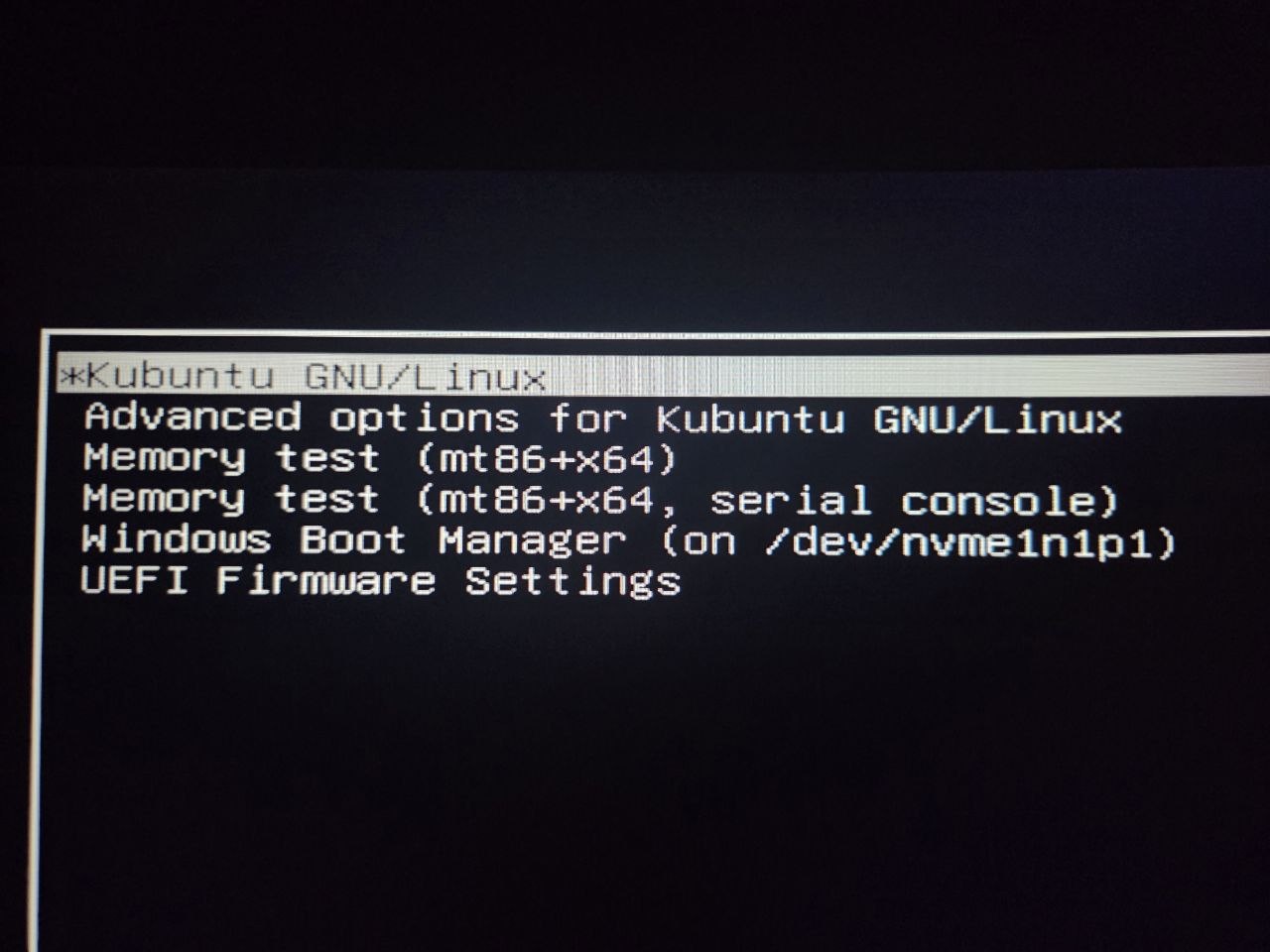
Alongside Kubuntu (the default entry), the menu had Windows Boot Manager (on /dev/nvme1n1p1).
Plenty of guides say "if Windows doesn't appear in GRUB, install os-prober, set GRUB_DISABLE_OS_PROBER=false, and run update-grub" (Ubuntu 22.04+ ships GRUB with os-prober off by default, for security). But this time GRUB auto-detected Windows right after install with none of that. I'd attribute it to the two OSes living on physically separate disks, each with its own EFI partition, so it got picked up cleanly. (It often doesn't get picked up, so if it's missing, the os-prober procedure above is the fallback.)
7. The real headache next: the 9-hour dual-boot clock
Booting into Windows, the time was off by exactly 9 hours. This is the classic dual-boot problem, and here my first fix was wrong and actually made the clock worse. It's a story of its own length, so I wrote it up separately — Dual-boot clock off by your UTC offset, and how --adjust-system-clock jumped the clock instead covers the misdiagnosis and the clean both-on-UTC fix.
8. Snags in the first post-install setup
With the clock sorted, bringing up a basic environment turned up a few more.
(a) A Minimal install has no browser at all
Trying to launch Firefox, there wasn't one. That's because of the Minimal choice back in section 3 — Minimal drops not just office and media apps but the browser too. The user installed it separately with sudo apt install firefox. If you're going Minimal, plan for "no browser to start with." That apt install firefox actually installing a snap — and evicting it for good in favor of Flatpak — is its own post.
(b) The fcitx5 Korean input method
I walked the user through installing fcitx5 fcitx5-hangul fcitx5-configtool, registering the input-method environment variables in /etc/environment, logging back in, and adding Hangul in the config tool. But then the physical Han/Yeong key wouldn't work properly — it turned out the key was sending Alt_R, not Hangul. That one is covered separately in when the Hangul key is really sending right Alt.
(c) apt install telegram-desktop says "package not found"
apt couldn't resolve the install (a universe-repository issue), so I asked the user to grab the official binary from Telegram's site directly:
mkdir -p ~/Apps && cd ~/Apps
wget -O telegram.tar.xz https://telegram.org/dl/desktop/linux
tar -xJf telegram.tar.xz
./Telegram/Telegram &
This tar approach was only temporary, though. Later in the same setup, while cleaning out snap, we deleted this Telegram too and reinstalled it as a Flatpak (org.telegram.desktop) — that's covered in when apt install firefox is actually a snap.
Wrap-up — the spots a beginner actually hits
- On QHD the installer text is tiny → go in with "Try" first and raise the scaling.
- Pin the disk by model name + capacity, not the device number (
nvme0n1). TheErase disk …line on the summary screen is your last chance to catch a mistake. - For a dedicated empty disk, "Erase disk" is actually safer than manual partitioning, and the bootloader lands on that disk automatically.
RDSEED is brokenis an AMD-erratum workaround log — harmless.- A separate-disk dual boot can have GRUB find Windows with no os-prober step.
- A Minimal install has no browser. The Korean IME and Telegram each have one trap.
- The 9-hour dual-boot clock lives in its own post — both-on-UTC, and the
--adjust-system-clockmisdiagnosis.
For a first Linux install, the worst accident — nuking your Windows disk — simply doesn't happen if you confirm the target disk by model name two or three times and read that one summary line (the Erase disk … line from section 4) properly. Everything else was fixable after the install.